יש שני סוגי מייל, והמנהל בוחר מה לשלוח. תראה מיד באיזה מהם
קיבלת:
מייל עם פרטי כניסה — בפנים כתובת המערכת, שם המשתמש
(כתובת המייל שלך) וסיסמה שהוגרלה עבורך. כדאי להחליף אותה
בכניסה הראשונה: במסך הכניסה יש "שכחתי סיסמה".
מייל הזמנה עם קישור — לוחצים על הקישור וקובעים סיסמה
משלך. הקישור חד-פעמי ופג אחרי זמן; אם הוא כבר לא עובד, מבקשים
מהמנהל לשלוח שוב.
הסיסמה אישית. אין להעביר אותה לאף אחד.
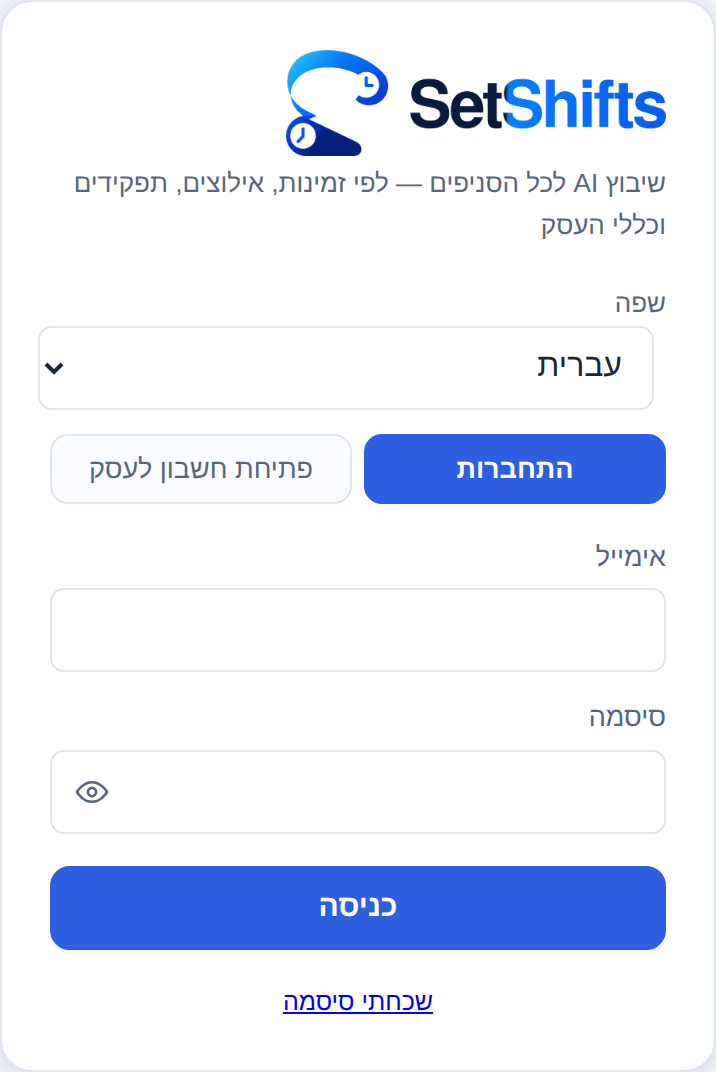
מסך הכניסה. המייל והסיסמה מהמייל שקיבלת. כדאי לאשר לטלפון לשמור את הסיסמה — בפעם הבאה היא תתמלא לבד.
2. שים את המערכת על מסך הבית
אחרי זה היא נפתחת כמו אפליקציה, בלחיצה אחת, בלי לחפש את המייל.
אייפון (Safari)
פותחים את הקישור בדפדפן Safari.
לוחצים על כפתור השיתוף — הריבוע עם החץ כלפי מעלה.
גוללים ובוחרים "הוספה למסך הבית".
לוחצים "הוספה".
אנדרואיד (Chrome)
פותחים את הקישור בדפדפן Chrome.
לוחצים על שלוש הנקודות בפינה.
בוחרים "התקנת אפליקציה" או "הוספה למסך הבית".
מאשרים.
3. מה רואים במסך
המשמרות שלי — רק שלך. את הסידור של האחרים אינך רואה.
הבקשות שלי — מה ביקשת לשבוע הקרוב ומה מצבה של כל בקשה.
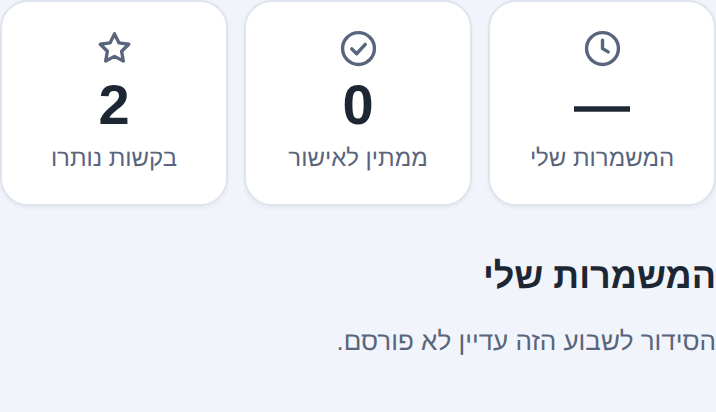
סידור שטרם פורסם אינו מוצג. כשהמנהל יפרסם, המשמרות יופיעו.
איזה שבוע? בכניסה המערכת שואלת איזה שבוע לראות: הנוכחי או הבא.
לידם כתוב אם הסידור של אותו שבוע כבר פורסם.
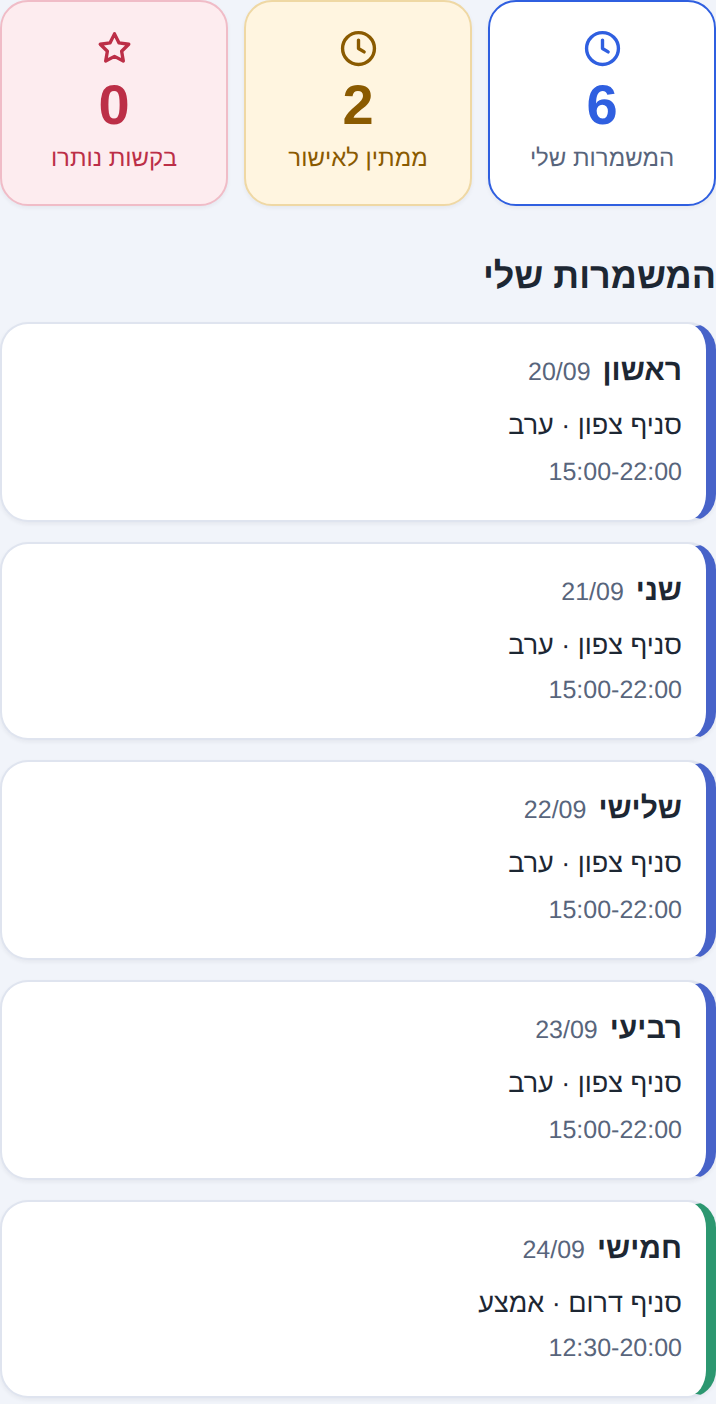
אחרי שהמנהל פרסם: שלושת המספרים למעלה, ומתחתיהם המשמרות שלך — יום, סניף ושעות. רק שלך.לפני הפרסום: "הסידור לשבוע הזה עדיין לא פורסם". זה תקין — המנהל עדיין עובד עליו.
4. איך מגישים בקשה
גוללים ליום הרצוי.
לוחצים על שם המשמרת. כל לחיצה מחליפה מצב:
מעדיף ← לא יכול ← זמין (נקי).
"יום חופש" חוסם את כל היום.
כדאי לכתוב סיבה קצרה בשורה שנפתחת. סיבה עוזרת למנהל להחליט,
והיא נראית רק לו.
זמין
לא ביקשת כלום — אפשר לשבץ אותך
מעדיף
תשמח לקבל את המשמרת הזו
לא יכול
בקשה לא לשבץ אותך במשמרת הזו
יום חופש
בקשה לא לשבץ אותך באותו יום כלל. בסידור שתקבל יופיע אם הוא בתשלום או ללא תשלום
קבוע
הסדר שסוכם מראש. אינו נערך מכאן ואינו נספר במכסה
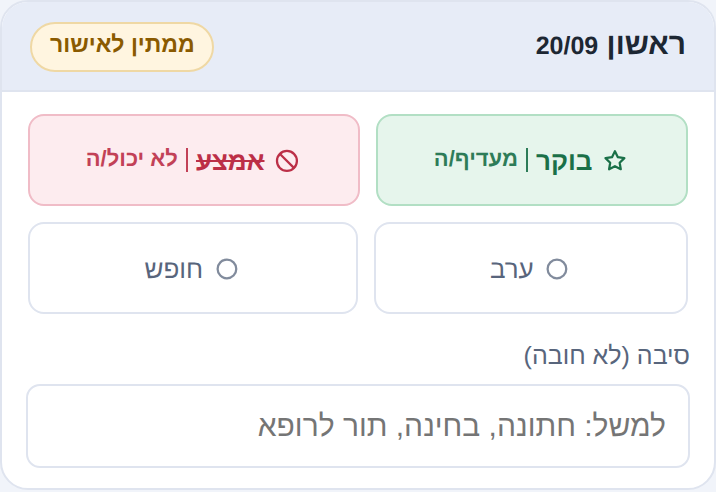
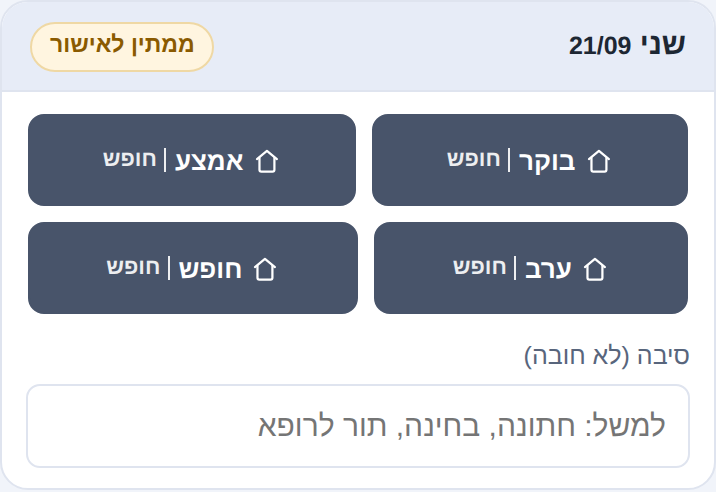
לחיצה על שם המשמרת מחליפה מצב. כאן "בוקר" סומן כמעדיף/ה ו"אמצע" כלא יכול/ה. הסיבה אינה חובה, אבל היא עוזרת."חופש" חוסם את כל היום — כל המשמרות באותו יום מסומנות יחד.
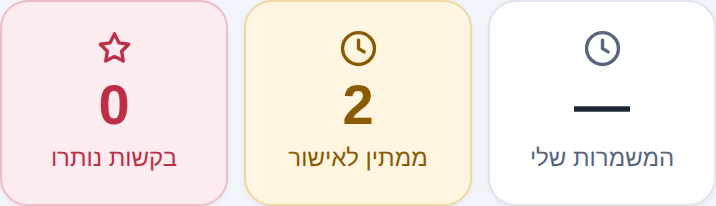
שלושת המספרים למעלה: כמה משמרות יש לך, כמה בקשות ממתינות לאישור, וכמה בקשות נותרו לך השבוע.
5. שעון נוכחות, אם העסק שלך משתמש בו
לא בכל עסק יש. אם יש — בראש המסך שלך יש כפתור גדול:
מתחילים משמרת — לוחצים "כניסה". מסיימים — "יציאה".
המסך מראה מאז מתי אתה בפנים, וכמה שעות נצברו היום.
לחיצה כפולה אינה נספרת פעמיים. אם לחצת ולא היית בטוח
שנקלט — תסתכל על המסך, הוא מראה את המצב הנכון.
השעה נקבעת בשרת ולא בטלפון שלך, כך שאי אפשר לטעות בגללה.
שכחת לצאת? תגיד למנהל. הוא יכול להשלים את היציאה, וזה
נרשם כתיקון שלו ולא כדיווח שלך.
שכחת להיכנס? אם המשמרת התחילה ולא נרשמה כניסה, באפליקציה
תופיע הודעה מעל הכפתור, ואם אישרת התראות תקבל גם התראה בטלפון. אם
העסק כיבה את התזכורות, היא לא תגיע.
בעסקים עם שעון בסניף אין כפתור באפליקציה — מעבירים כרטיס מול
המכשיר, וזה מגיע לאותו מקום.
6. בקשת חופשה
בתחתית המסך יש "בקשת חופשה". בוחרים מתאריך ועד תאריך, ואפשר לכתוב
סיבה. בקשה כזו היא תמיד בקשה לחופשה בתשלום — אין מה לסמן. הבקשה
מגיעה למנהל כבקשה אחת, לא כמו חמש בקשות נפרדות, ואתה מקבל הודעה כשהוא
מאשר או דוחה.
הבקשות שלך והמצב שלהן מופיעות באותו מקום, ואפשר להגיש חופשה
לחודשיים קדימה.
7. חשוב לדעת
בקשה אינה אישור. כל בקשה ממתינה לאישור המנהל, ורק אחרי
שאושרה היא משפיעה על השיבוץ.
יש מועד סגירה. אם המנהל הגדיר אחד (יום ושעה קבועים בכל שבוע),
הוא מופיע למעלה במסך. אחריו אי אפשר להגיש בקשה חדשה או לשנות בקשה
קיימת לאותו שבוע.
אישור או דחייה של בקשה מופיעים אחרי פרסום הסידור, ולא ברגע
שהמנהל מחליט. עד אז הבקשה מופיעה כממתינה. בקשת חופשה היא היוצאת מן
הכלל: ההחלטה עליה מוצגת מיד, ומגיעה הודעה.
יכולה להיות מכסה שבועית של מספר בקשות. הכמות שנותרה
מוצגת למעלה. גם "מעדיף" נספר במכסה, כמו כל בקשה אחרת.
אחרי פרסום הסידור אי אפשר לשנות מהמסך — פונים למנהל.
נכנסתי ואני לא רואה משמרות או שהסידור טרם פורסם, או שהחשבון
שלך עוד לא קושר לכרטיס העובד. תגיד למנהל — זו לחיצה אחת אצלו.
החלפתי טלפון פשוט נכנסים שוב עם אותו מייל ואותה סיסמה,
ומוסיפים שוב למסך הבית.
שאלות על המשמרות עצמן — למנהל המשמרות שלך.
תקלה במערכת: support@setshifts.com
(שעות השירות של SetShifts: ראשון עד חמישי, 09:00–15:30).
Your shift app — on one page
Your manager builds the schedule in SetShifts. You use it
to see your own shifts and to send your requests for next week. Three minutes
of reading, once.
A password — generated for you. Change it whenever you like:
the sign-in screen has "Forgot password".
The password is yours alone. Do not pass it on to anyone.
The sign-in screen. Use the email and password from your message. Let your phone save the password — next time it fills itself in.
2. Put it on your home screen
It then opens like an app, in one tap, without hunting for the email.
iPhone (Safari)
Open the link in Safari.
Tap the Share button — the square with an arrow pointing up.
Scroll down and choose "Add to Home Screen".
Tap "Add".
Android (Chrome)
Open the link in Chrome.
Tap the three dots in the corner.
Choose "Install app" or "Add to Home screen".
Confirm.
3. What you see
My shifts — yours only. You do not see anyone else's schedule.
My requests — what you asked for next week, and where each request stands.
A schedule that has not been published yet is not shown. It appears once your manager publishes it.
Which week? When you open the app it asks which week to show:
this week or next week, with a note on whether that schedule has been
published.
After your manager publishes: three numbers at the top, then your shifts — day, location and hours. Yours only.Before publishing: "this week has not been published yet". That is normal — your manager is still working on it.
4. How to send a request
Scroll to the day.
Tap the shift name. Each tap changes the state:
Prefer → Can't → Available (clear).
"Day off" blocks the whole day.
Add a short reason in the line that opens. A reason helps your manager
decide, and only they see it.
Available
You asked for nothing — you can be scheduled
Prefer
You would be glad to get this shift
Can't
A request not to be scheduled on this shift
Day off
A request not to be scheduled at all that day. The schedule you receive says whether it is paid or unpaid
Standing
An arrangement agreed in advance. Not edited here and not counted against your quota
Tapping a shift name changes its state. Here "Morning" is marked Prefer and "Midday" as Can't. A reason is optional, but it helps."Day off" blocks the whole day — every shift that day is marked together.
The three numbers at the top: how many shifts you have, how many requests are waiting for approval, and how many requests you have left this week.
5. The time clock, if your workplace uses one
Not every workplace does. If yours does, there is a large button at the
top of your screen:
Starting a shift — press "Clock in". Finishing —
"Clock out". The screen shows since when you are clocked in, and how
many hours you have today.
A double press is not counted twice. If you pressed and
weren't sure it registered, look at the screen — it shows the real state.
The time comes from the server, not from your phone, so your
phone's clock can't get it wrong.
Forgot to clock out? Tell your manager. They can complete it,
and it is recorded as their correction, not as your punch.
Forgot to clock in? If your shift has started and no clock-in
was recorded, the app shows a notice above the button, and if you allowed
notifications you'll also get one on your phone. If your workplace turned
reminders off, none is sent.
Where there is a terminal at the branch there is no button in the app —
you swipe your card at the device, and it reaches the same place.
6. Requesting leave
At the bottom of the screen there is "Leave request". Pick a start and an
end date, and you can add a reason. Such a request is always a request for
paid leave — there is nothing to tick. It reaches your manager as one
request, not as five separate ones, and you get a notification when it is
approved or declined.
Your requests and their status appear in the same place, and you can ask
for leave up to two months ahead.
7. Worth knowing
A request is not an approval. Every request waits for your manager,
and only once approved does it affect the schedule.
There may be a deadline. If your manager set one (a fixed day and
time every week), it is shown at the top of your screen. After it you can
neither send a new request nor change an existing one for that week.
Approval or decline of a request shows up after the schedule is
published, not the moment your manager decides. Until then the request
shows as waiting. Leave requests are the exception: the decision shows
immediately, with a notification.
There may be a weekly quota of requests. How many you have left is
shown at the top. "Prefer" counts toward it too, like any other request.
Once the schedule is published you cannot change it from the screen —
talk to your manager.
8. Common problems
I forgot my password On the sign-in screen tap "Forgot password" and
an email arrives to set a new one.
I am in, but I see no shifts Either the schedule is not published yet,
or your account is not linked to your staff card. Tell your manager — it is one
click for them.
I changed phones Sign in again with the same email and password, and
add it to the home screen again.
Questions about the shifts themselves — ask your shift manager.
A problem with the app: support@setshifts.com
(SetShifts support hours: Sunday to Thursday, 09:00–15:30).